



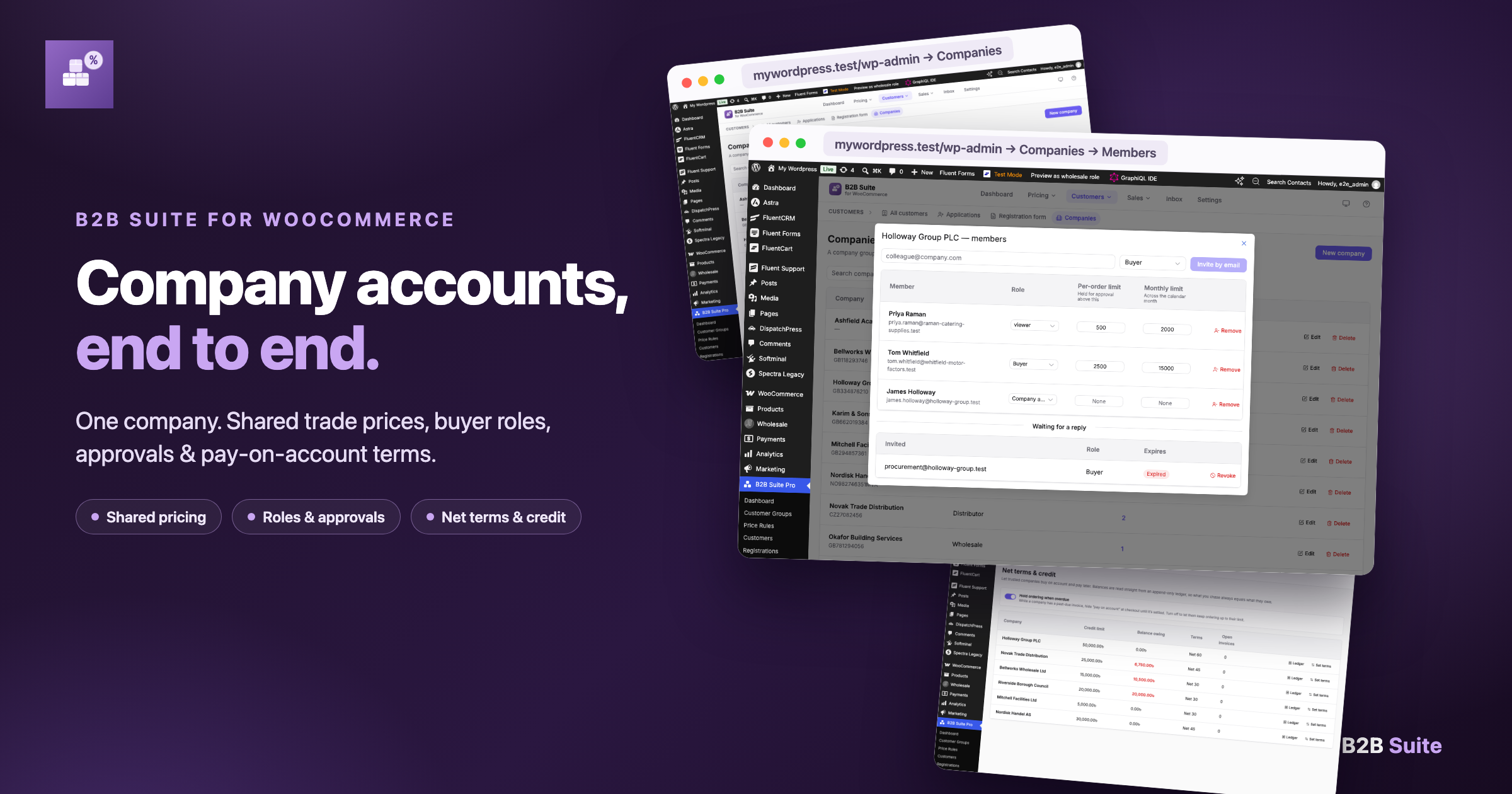
Most B2B stores treat the buyer as the customer: Jane has an account, Jane gets the trade price, Jane places the orders. But Jane is rarely the whole story. The actual customer is Holloway Trade — and Jane is one of four people there who buy from you. A new purchasing assistant joins and needs the same prices. A director wants to approve anything over a few thousand. The finance team expects to pay on 30-day terms, not by card.
That’s the gap company accounts fill in B2B Suite for WooCommerce (Pro). One company record owns several buyers; every member sees the company’s trade prices, orders and credit; and the store can enforce roles and limits that match how a real purchasing team works — instead of pretending each login is a separate customer.
This post walks the whole flow end to end: create the company, give it a pricing group, invite its people, cap their spending, put the company on terms — and then what it looks like from the buyer’s side, order after order.
TL;DR
- A company account groups several WordPress users under one buying organisation. The company has a name, a VAT number and a pricing group; the people are its members.
- The company’s group overrides each member’s own — so every colleague pays the same agreed trade price, whether they were individually assigned a group or not.
- You invite members by email with a role: Admin (manages the company), Approver (approves orders), or Buyer (places orders). Invites are single-use and expiring.
- Set a per-buyer spend limit per order and per month. An order above the limit is held for approval instead of going through — the approver gets a notification and decides on a signed link.
- Give the company net terms and credit (Net 30/60/90). The buyer picks “pay on account” at checkout, and you track exposure against a real ledger with statements and overdue reminders.
- Members share the company’s purchase lists and message threads, so a team orders from one shared context instead of four personal ones.
- Company accounts are a Pro feature: they need the free B2B Suite plugin (which owns the schema and pricing pipeline) plus the Pro add-on.
Why a company account?
A wholesale-pricing plugin gives you groups and discounts — but it still sees one login, one customer. Real trade buyers don’t work that way, and the friction shows up in familiar places:
- Prices drift between people. Jane was assigned the trade group when she applied; her colleague Sam joined later and nobody assigned him, so Sam sees retail and emails you about it.
- Orders scatter across accounts. Jane, Sam and Priya each place orders under their own logins, so you can’t see Holloway Trade’s history in one place — and neither can they.
- No one can say no. Any buyer can place any order, because the store has no idea who’s allowed to commit the company’s money.
- “Pay by card” doesn’t fit. A business that buys on invoice simply won’t check out with terms it doesn’t have.
A company account fixes all four at once, because it moves the customer from person to organisation:
The company is the customer. The people are how it buys.
Step 1: Create the company and set its pricing group
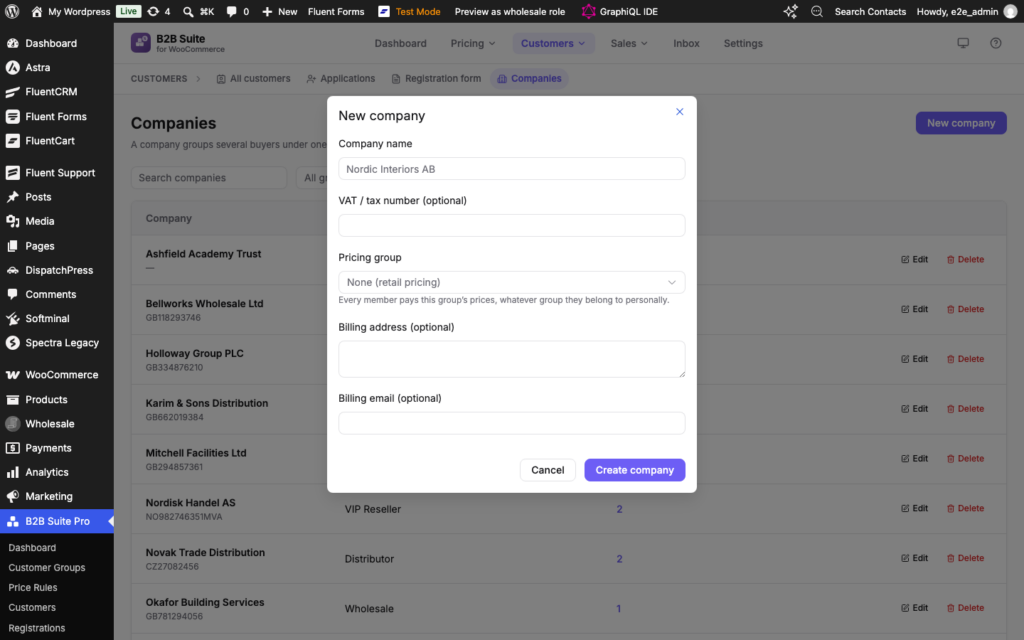
In B2B Suite → Customers → Companies (Pro), create a new company. You give it a name, an optional VAT or tax number, and — the part that does the real work — a pricing group.
The pricing group is the same customer group you already use for wholesale pricing: the one that carries your percentage-off, fixed-price and quantity rules. What’s different is who it applies to:
Every member of this company pays this group’s prices, whatever group they belong to personally.
That one rule is what stops the Jane-and-Sam drift. Assign Holloway Trade to your “Wholesale — Distributor” group, invite three people, and all three see exactly the same prices from the moment they accept. When you renegotiate, you change the company’s group once — not three accounts.
You can also store the company’s billing details here, which then appear on its orders and invoices.
Step 2: Invite the people — Admin, Approver, Buyer
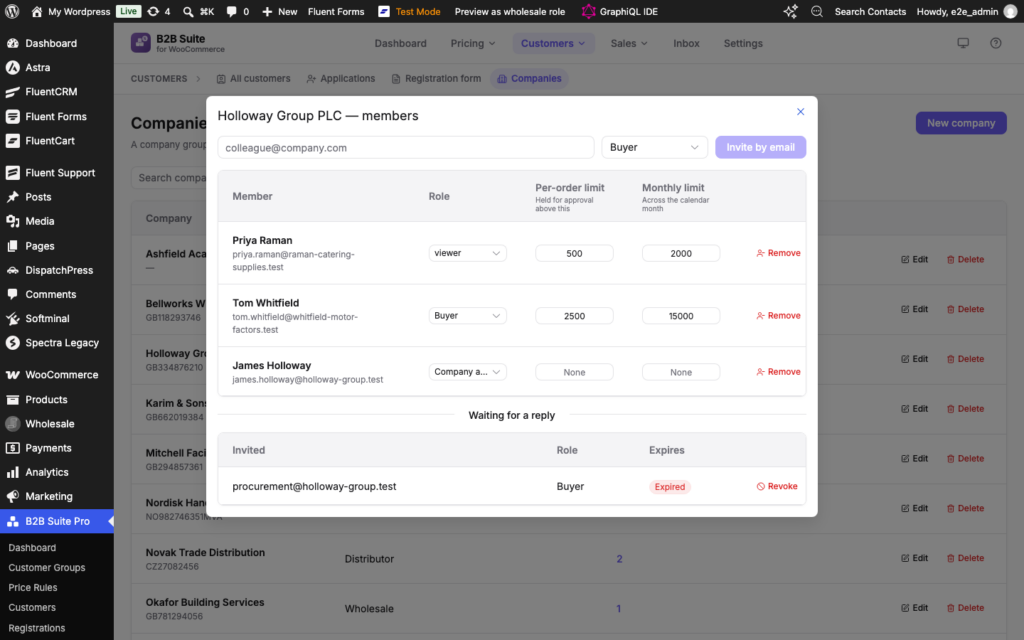
Next, add the people. Instead of handing out a shared login (which breaks audit trails and gets shared anyway), you invite each colleague by email with one of three roles:
- Admin — manages the company: invites and removes members, and changes settings.
- Approver — approves orders that trip a spend limit. An Admin can approve too, but a company often wants a finance lead doing it.
- Buyer — places orders. This is the everyday role for most of the team.
Each invite is single-use and expires, and it’s tied to the email address — so only the right person can accept it. When a colleague accepts, their account is linked to the company and they see the company’s trade prices immediately — no waiting for you to set them up.
What you don’t have to do is remember to assign each new starter a group. Their group comes from the company, so onboarding a new buyer is one invite, not a pricing-setup chore. And if someone leaves, removing them from the company sends their pricing back to their personal account — nothing lingers.
Step 3: Cap the spend with limits and an approval chain
A company that trusts its buyers still wants guardrails. B2B Suite lets you set two limits per member: a per-order limit and a monthly limit.
When a buyer tries to place an order that exceeds their limit, the order doesn’t just fail — it’s held for approval:
- The order is placed into an “awaiting approval” state, and the items’ stock is reserved so they can’t be sold to someone else while the order waits.
- The company’s Approver is notified. They can open the order from a signed link — no shared logins, no “log in as Jane”.
- The approver approves or rejects. Approve, and the order proceeds (completing on account if the company has credit — more below, or by the normal payment link otherwise). Reject, and the buyer hears about it with the stock released.
This is the part that lets a junior buyer build a basket without giving them the keys to the company cheque book. Shopify B2B treats this as a flagship feature; on WooCommerce, it’s what turns a store into somewhere a real purchasing team can work.
Step 4: Put the company on terms and credit
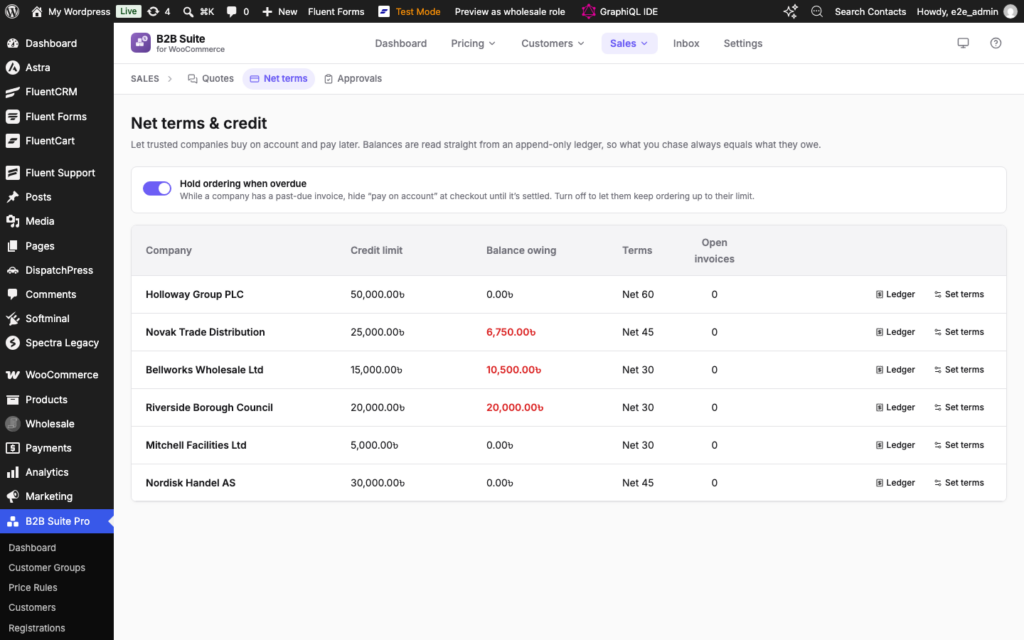
Trade buyers expect to pay on invoice. On the company record you can set up a credit account: a credit limit and terms — Net 30, 60 or 90.
From then on, checkout offers the company’s buyers “pay on account” as a payment method, up to their available credit. Behind the scenes B2B Suite keeps an append-only ledger: every order debits it, every payment and refund credits it, and the store checks limit − outstanding balance at checkout, so a company can’t quietly exceed its exposure. Over the limit, the order is declined with a clear message.
When invoices come due, you don’t need to chase manually: B2B Suite sends the company a statement each month and overdue reminders on a schedule you set, all rendered from the same ledger. You see, per company, exactly what’s outstanding and what’s overdue — in the admin, not in a spreadsheet.
What a company buyer sees every day
Once the company is set up, the everyday experience is deliberately quiet — everything just works:
- Prices. A member browses the shop and sees the company group’s price, resolved through the same single pricing pipeline every B2B price runs through. If they (or you) ever wonder why a number is what it is, the price explainer shows the full decision — including the line that says a price list for their company won. Because one resolver answers the product page, the cart and the checkout, the price can’t change mid-purchase.
- Their own account, the company’s context. Each person logs in as themselves — order history is still per-person where it should be — but shared company features (below) treat them as one organisation.
- Consistent behaviour everywhere. Company pricing applies on the shop, in the bulk order form, and in the block checkout, because it’s resolved at the pricing layer, not patched per page.
Working together: shared lists and company threads
The last piece is what makes a team feel like one account rather than four people with a shared discount.
Shared purchase lists. Buyers in B2B Suite can save reorder lists — “Monthly restock”, “Site consumables”. With a company account, a member can share a list with the company. Every colleague then sees it (badged with who shared it) and can load it and order from it; only the owner edits it. The person who manages the supplier relationships builds the list once, and the whole team orders from it.
Company conversations. If a buyer messages you about an order, or you’re negotiating a quote, the thread is visible to the whole company — not trapped in one person’s inbox. A colleague can follow up or answer while the original buyer is on leave, and the conversation history travels with the company rather than with the individual. Quotes raised in those threads stay tied to the same company context.
The result: the company builds one shared working relationship with your store — one set of prices, one shared list of what it reorders, one thread of decisions — while each person still logs in with their own account and their own permissions.
FAQ
Do company accounts work with the free B2B Suite plugin?
Company accounts are a Pro feature. You need the free B2B Suite plugin for WooCommerce installed and active (it owns the database schema and the pricing pipeline), plus the Pro add-on. Everything else in the free plugin — groups, price rules, registration, bulk ordering — keeps working exactly as before.
Does the company’s group really override a member’s personal group?
Yes. Pricing is resolved member → company → group, and the company’s group wins. If a buyer belongs to a personal group too, the company’s pricing takes precedence while they’re a member — which is what keeps every colleague on the same agreed price. Remove them from the company and their personal pricing applies again.
What happens when an order exceeds a buyer’s spend limit?
The order is held for approval rather than blocked: stock is reserved, the company’s approver is notified, and they approve or reject from a signed link. Approve and the order proceeds; reject and the stock is released and the buyer is told.
Can buyers pay on invoice?
If the company has a credit account, yes — “pay on account” appears at checkout up to the available balance, and the order is tracked in a real ledger with statements and overdue reminders. Net 30, 60 and 90 are supported.
Does every member see the same order history?
Each person has their own account and their own order history, but company-shared context — purchase lists and conversations — is visible to every member, so the team works from one shared picture without sharing logins.
How do new starters get trade pricing?
You invite them by email with a role. When they accept, they’re a company member and see the company’s trade prices immediately — no separate group assignment needed.
Conclusion
A B2B store that treats each login as a separate customer ends up with drifted prices, scattered order history and no way to say no. Company accounts fix that by making the organisation the customer: one pricing group for the whole team, colleagues invited with real roles, spend limits with an approval chain, and pay-on-account terms tracked in a proper ledger.
Set up is four steps — create the company, pick its group, invite its people, set the limits and terms — and from then on the storefront quietly behaves like one account, because it is one.
Get B2B Suite free on WordPress.org and add Pro when your buyers need company accounts, spend limits and terms. Questions? The docs cover every setting, and support is here to help.


Comments
Leave a comment
Loading comments…