





Running a B2B store means a lot of small questions. What does this customer pay for that product? Who still owes us money? Which trade applications are waiting? Each answer takes a few clicks on a few screens.
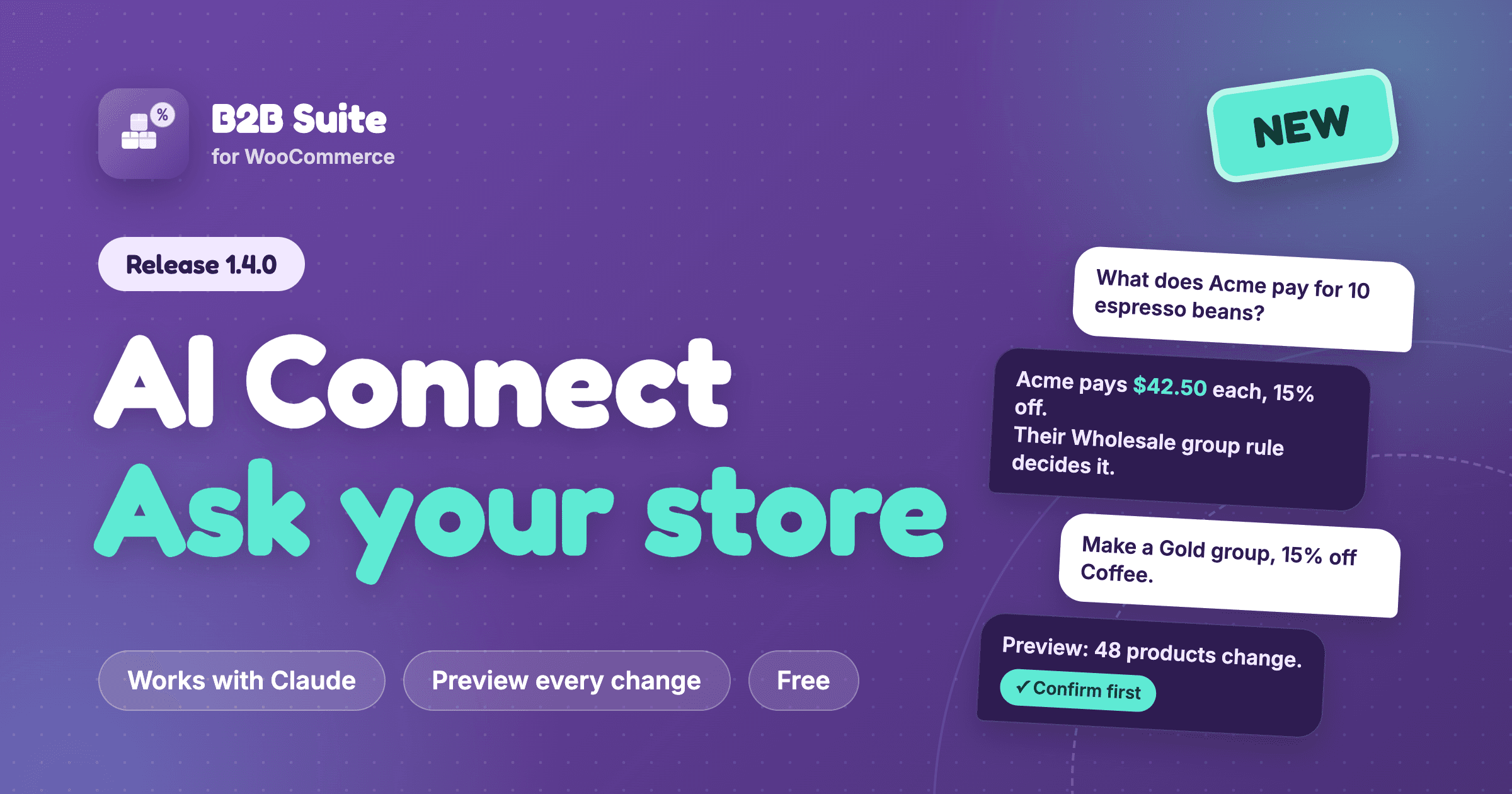
B2B Suite 1.4.0 adds AI Connect. You connect an AI app, like Claude, to your store. Then you ask your question in plain words, and get the answer from your live store data.
The AI can also do work for you, like create a price rule or approve an application. But only when you allow it. And it always shows you the change first.
AI Connect is part of the free plugin.
Quick summary
- AI Connect lets an AI app work with your B2B store. It works with Claude Desktop, Claude Code and any other app that supports MCP.
- By default, the AI can only look things up. It can’t change anything.
- You can allow changes with one switch. Then every change is shown to you first, and happens only after you say yes.
- Customer emails and form answers stay hidden from the AI, unless you turn that on.
- Everything the AI changes is written to an activity log.
- You set it up from one screen: Settings → AI Connect. No code.
What you can ask
You don’t need to learn any commands. You type a question like you would ask a colleague. Here are some real examples:
- “Give me an overview of my B2B store.”
- “What does [email protected] pay for 10 bags of the 1 kg espresso beans?”
- “Why is this customer getting that price?”
- “Which trade applications are waiting? Approve the ones from our UK partners.”
- “Create a Gold group with 15% off the Coffee category. Show me what it does first.”
- “What would 20% off the whole shop do to our best sellers?”
- “What did you change yesterday?”
With B2B Suite Pro, you can also ask about company accounts, quotes and credit:
- “Who owes us money? Who is on credit hold?”
- “Which quotes are waiting for me?”
- “Offer the Acme quote at 10% under list price.”
Price questions use the same pricing engine as your shop and checkout. So when the AI says “Jane pays $42.50”, that is the price Jane sees at checkout. It also tells you which rule decided that price.
It reads first. You decide on changes.
Letting an AI change your prices sounds risky. So we built AI Connect to be careful by default.
Out of the box, the AI can only read. It can answer questions. It can’t create, edit or delete anything.
When you want help with real work, turn on Make changes. Even then, each change works like this:
- The AI prepares the change and shows you a preview. For example: “This rule changes the price of 48 products. Espresso beans 1 kg: $50.00 → $42.50.”
- You read it and say yes, or ask for something different.
- Only then does the change happen.
The preview is locked to that exact change. The AI can’t show you one thing and then do another. If the data changes in between, it must preview again.
Bigger actions sit behind a second switch, Also trash and reject. This covers moving groups and price rules to the Trash and rejecting applications. Trashed items can come back for 30 days.
Some things the AI can never do, whatever you switch on:
- It can’t change its own permissions.
- It can’t see your secret keys, like CAPTCHA or licence keys.
- It can’t touch your staff accounts, only customers.
- It can’t make more than 60 changes in a minute. If it tries, it is stopped, and you get an email.
Your customer data stays private
By default, the AI sees names, groups and order totals. It does not see email addresses, VAT numbers or the answers from your registration form.
If you need the AI to see those, turn on Share customer details. While it is on, every time the AI reads customer data, it goes into the log. So you always know who looked at what.
B2B Suite itself sends nothing to any AI company. Your data goes only to the AI app you connect, and only when you ask it something.
Every action is in the log
The Activity list on the AI Connect screen shows what the AI did, newest first. Each row says when, what, through which connection, and the result.
Open a row to see the details. For a change, you see the values before and after.
You can filter the list to see only changes, only previews, or only actions that were refused. You also choose how long to keep the log: 30 days, 90 days, 1 year or forever.
How to connect, in three steps
Open B2B Suite → Settings → AI Connect. The screen walks you through it.
1. Install the MCP Adapter. This is a free plugin from WordPress.org. It lets AI apps reach your store. Click Install & activate.
2. Create the AI agent. This makes a separate WordPress user called “AI Agent”. The AI signs in as this user. It can only use B2B Suite’s AI tools, nothing else in your dashboard.
3. Add a connection. Give it a name, like “Claude Desktop, office Mac”. You get the setup for your AI app, ready to copy. There is a tab for Claude Code, one for Claude Desktop, and one for other apps.
That’s it. Ask your AI app “Give me an overview of my B2B store” to test it. The status at the top of the screen changes to Connected.
Add one connection for each app or computer. Then you can turn off one of them without breaking the others. To stop all access at once, there is one switch at the top of the screen.
Free and Pro
Free includes everything for groups, price rules, customers, trade applications, settings and price checks. That’s 23 tools.
Pro adds 16 more:
- Company accounts: see companies and their members, add or remove members.
- Quotes: see quote requests, send offers, reply to buyers, decline a quote.
- Net terms and credit: see who owes money, set credit limits, record payments.
- Two guided tasks. You start these from your AI app’s menu. “Set up a wholesale tier” builds a new group step by step, with your OK at each step. “Weekly B2B digest” gives you a short list of what needs your attention this week.
The full list of tools is in the AI Connect tools docs.
What you need
- B2B Suite 1.4.0 or newer.
- WordPress 6.9 or newer. AI Connect uses the new Abilities API that came with WordPress 6.9.
- HTTPS on your site, to connect over the internet. On a local test site, you can use WP-CLI instead.
- An AI app that supports MCP (Model Context Protocol), like Claude Desktop or Claude Code.
FAQ
Do I have to use it?
No. Nothing reaches your store until you add a connection. If you never want it, turn AI Connect off with the switch at the top of the screen.
Can the AI change my prices without asking me?
Not with the default settings. Changes are off until you turn them on. When they are on, the AI must show you each change and get your OK first.
Which AI apps work?
Any app that supports MCP. The screen has ready-made setup for Claude Desktop and Claude Code. Other MCP apps work with the address and password shown on the screen.
Does it slow down my shop?
No. AI Connect does nothing until an AI app calls it. It adds nothing to your shop pages.
Can I stop it at any time?
Yes. Revoke one connection, revoke all of them, or turn AI Connect off. It stops working straight away.
Is there a setup guide?
Yes. The AI Connect docs explain every step and every switch.
Get it
Update B2B Suite to 1.4.0 from your Plugins screen. If you are new, get B2B Suite free on WordPress.org.
Then open Settings → AI Connect and ask your store your first question.

Comments
Leave a comment
Loading comments…