



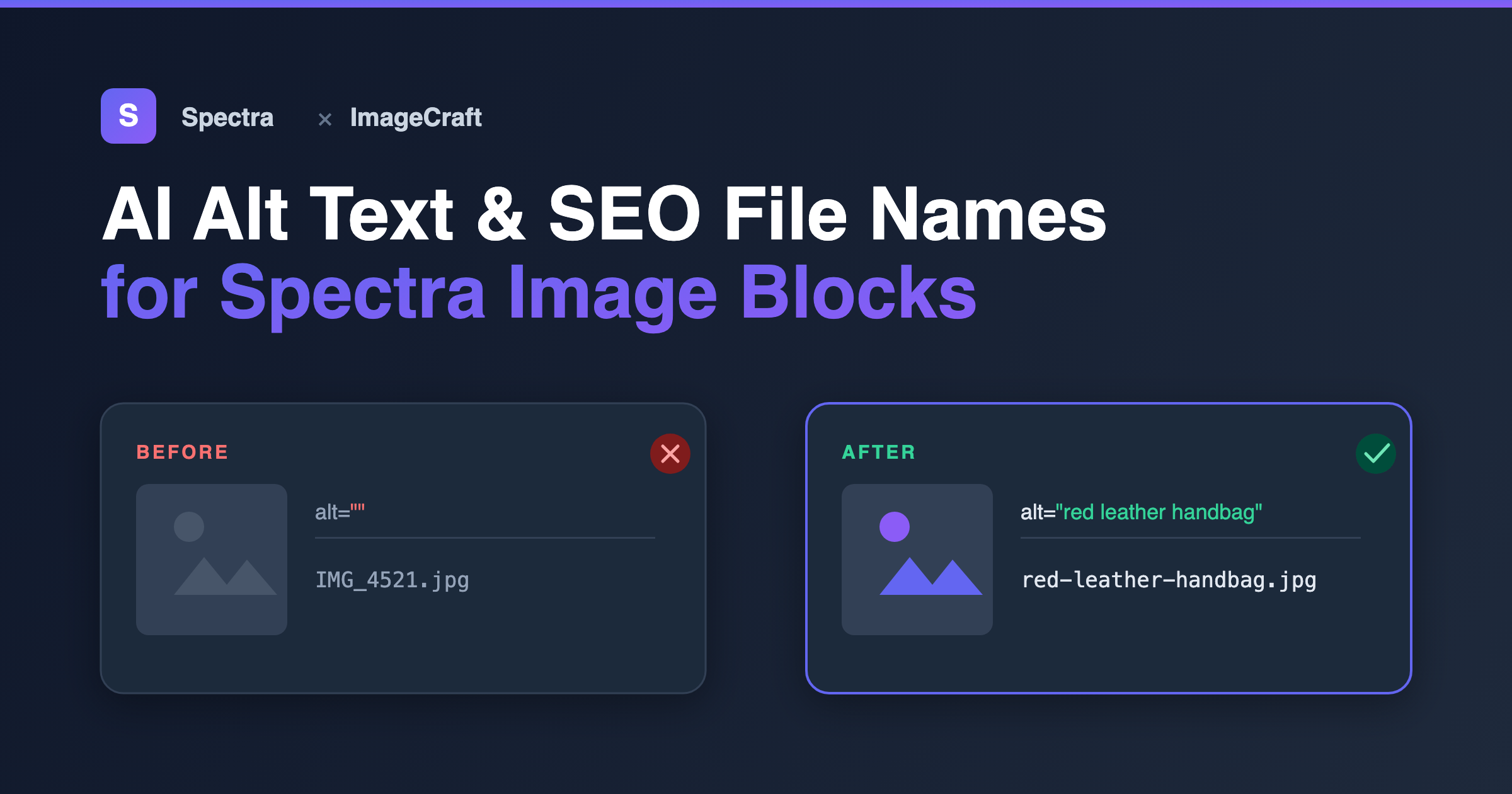
A Spectra layout can look flawless and still quietly hurt your SEO and accessibility. Every Image block you place pulls from your media library — and if those images have empty alt text and file names like IMG_4521.jpg, search engines and screen readers see every flaw the editor hides. ImageCraft fixes that at the source.
Why Spectra and ImageCraft work so well together
The Spectra Image block doesn’t store its own copy of an image — it references an attachment in your WordPress media library and pulls that image’s alt text and file URL from there. ImageCraft works at exactly that level. So you don’t optimize images inside Spectra; you optimize them once in the media library, and every Spectra block using that image inherits the result automatically.
Optimize an image once with ImageCraft, and every Spectra Image block that uses it gets accessible alt text and an SEO-friendly file name — with no block re-editing.
Method 1: Optimize first, then insert into Spectra (recommended)
This is the cleanest workflow for any new page or post — get the image right in the media library, then build your Spectra layout on top of polished assets.
- Upload your image to the media library.
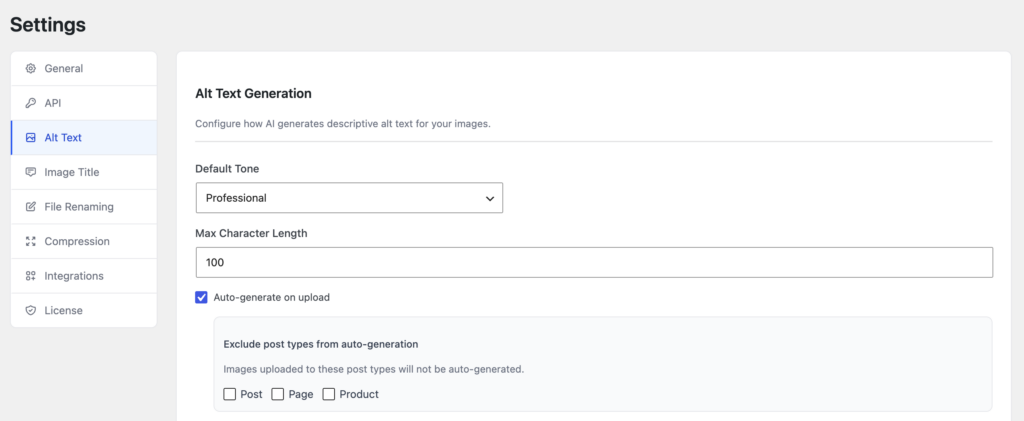
- Turn on auto-generate alt text. In ImageCraft → Settings → Alt Text, enable Auto-generate on upload so every new upload gets AI alt text automatically.
- Rename the file for SEO. In ImageCraft → Scanner, click Rename to turn
DSC_0099.jpginto something likered-leather-handbag.jpg— safely updating the file and its URL. - Add the Spectra Image block and select your optimized image. The alt text and clean file name come along automatically.
Prefer a particular wording? In Settings → Alt Text you can pick a tone (Professional, SEO, Casual, Technical) and a max length — and the Spectra block displays whatever alt text ImageCraft saved.
Method 2: Already built the page? Fix existing images in bulk
If your Spectra blocks are already live with missing or weak alt text, you don’t need to touch the blocks at all. Because they reference the media library, fixing the image there updates the block automatically.
- Open ImageCraft → Scanner — it flags every image with missing or generic alt text, including the ones used in your Spectra blocks.
- Select the images (or Select All) and click Generate.
- Review the AI suggestions and Accept them in bulk.
- Reload your page — the Spectra Image blocks now show the new alt text, with no block re-editing.
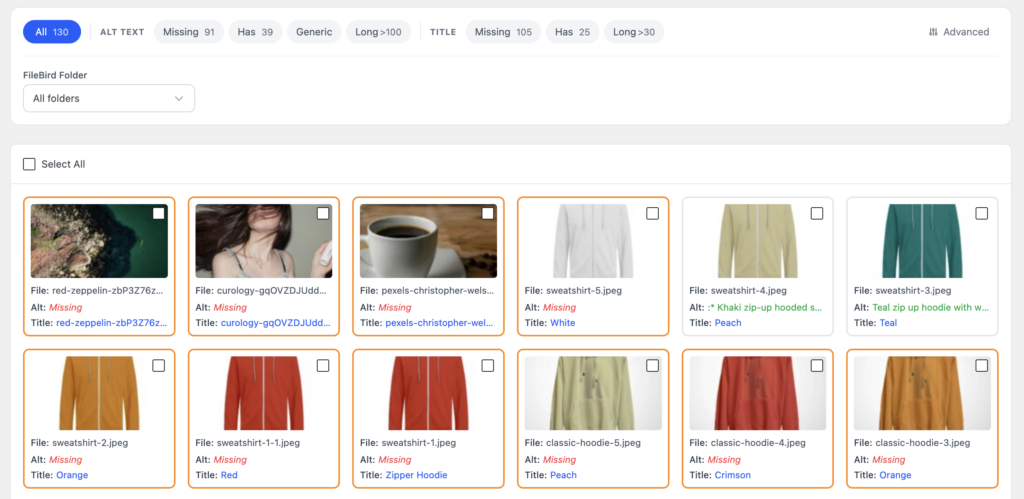
For very large libraries, use the Batch screen — it processes hundreds of images in the background, so you can fix an entire site’s worth of Spectra images in one run.
Frequently asked questions
Does ImageCraft change the Spectra block itself?
No. ImageCraft only optimizes the underlying media library attachment — its alt text and file name. The Spectra Image block simply reflects those values when it renders, so there’s nothing to re-edit inside Spectra.
Will renaming a file break the image in my Spectra block?
No. ImageCraft updates the attachment’s file and URL references safely, so your Spectra block keeps pointing at the correct new URL.
Do I need to re-insert images after generating alt text?
No. Spectra reads alt text live from the attachment, so accepting AI alt text in ImageCraft updates what the block outputs automatically.
Does this work with Spectra galleries too?
Yes. Any block that pulls from the media library — Spectra’s Image and gallery blocks included — benefits from the optimized attachments.
Get started
ImageCraft is free to install and works alongside Spectra, Gutenberg, Kadence, WooCommerce, Yoast SEO, Rank Math, AIOSEO, SEOPress, and FileBird. Optimize your images once in the media library, build your Spectra layout on top, and every Image block ships SEO-ready — without writing a single line of alt text by hand.
Ready to make every Spectra image count? Get ImageCraft →


Comments
Leave a comment
Loading comments…