



Your pages can look perfect and still load slowly. Images are usually the heaviest thing on a web page — a single un-optimized photo can outweigh your entire layout, scripts, and fonts combined. That weight drags down your Core Web Vitals, your search rankings, and your visitors’ patience. ImageCraft fixes it at the source, right inside WordPress — locally, without quality loss, and with every original safely backed up.
Why image size quietly hurts your site
Most media libraries are full of images two to ten times larger than they need to be. Compressing them is one of the highest-impact, lowest-effort speed wins available — because page weight touches almost everything that matters:
- Core Web Vitals. Your Largest Contentful Paint (LCP) is very often an image. Heavy images mean a poor LCP score.
- SEO rankings. Faster pages are favored in search — and they keep visitors from bouncing.
- Conversions. Every extra second of load time measurably reduces sign-ups, sales, and engagement.
- Mobile experience. On phones and slower networks, a 4 MB photo is the difference between “instant” and “still loading.”
Compress your library once with ImageCraft, and every page that uses those images gets lighter — with no rebuilds, no re-uploads, and no lost quality.
How ImageCraft compression works
ImageCraft takes a quality-first approach. Instead of aggressively crushing images to hit a number, it re-encodes them intelligently so the file gets smaller while the picture stays visually identical. Under the hood:
- Runs locally on your server using Imagick, with an automatic GD fallback. No image ever leaves your site — no third-party API, nothing to sign up for.
- Visually-lossless re-encoding. It strips bloated EXIF data and color profiles, enables progressive JPEG, and deliberately avoids chroma subsampling — so edges and text stay sharp.
- Optional smart resize. Oversized images are scaled to a sensible maximum (2048px on the longest edge by default) — usually where the biggest savings come from.
- Never-enlarge guard. It writes to a temporary file first and only keeps the result if it’s actually smaller. Already-optimized images are left untouched.
Method 1: Compress a single image (or automatically on upload)
The fastest way to optimize as you work — no leaving the screen you’re on.
- Open any image in the WordPress media modal and click the Compress button ImageCraft adds right there.
- Check the savings. ImageCraft shows the before/after size and the percentage saved — and backs up the original first.
- Want it hands-free? Enable auto-compress on upload (Pro) so every new image is optimized the moment it’s added.
Method 2: Already have a full library? Compress in bulk
If your site is already full of heavy images, you don’t need to touch them one by one. ImageCraft optimizes the underlying media library, so every page using those images gets lighter at once.
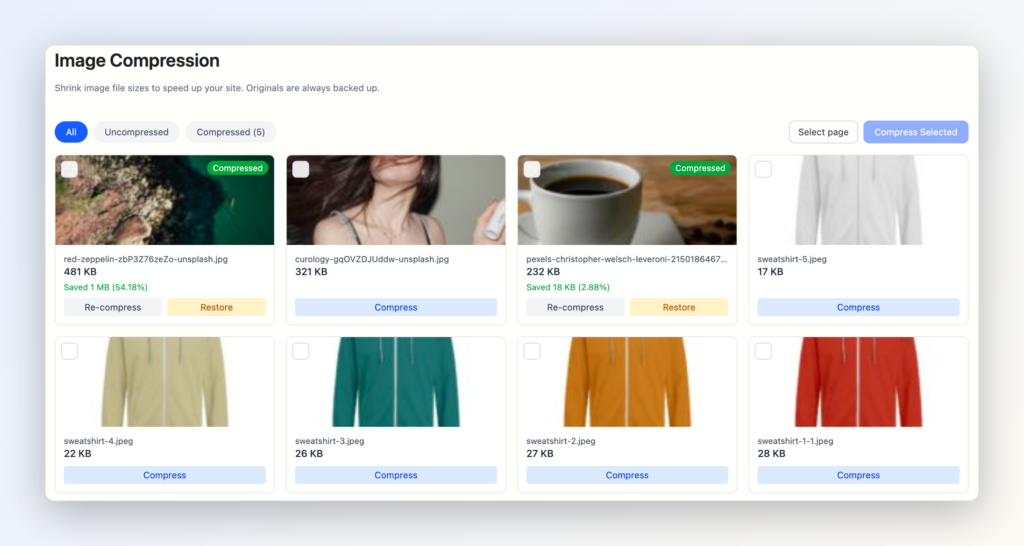
- Open ImageCraft → Compress and filter by Uncompressed to see everything that still needs work.
- Click Select page (or pick individual images) and choose Compress Selected.
- Watch the live progress — each image shows its new size and savings as it finishes.
- Changed your mind on any result? Click Restore to bring back the original instantly.
For very large libraries, the bulk run processes hundreds of images in the background, so you can optimize an entire site in a single pass.
Free vs Pro
Free gives you everything you need to get real results: manual single and bulk compression, visually-lossless quality with a smart 2048px downscale, automatic backup and one-click restore, and 50 free actions per day (shared across AI features and compression). Pro removes the limits and adds automation: unlimited compression, adjustable quality and resize limits (or disable downscaling entirely), and automatic compression on upload.
Frequently asked questions
Will compression reduce my image quality?
Not visibly. ImageCraft re-encodes images without chroma subsampling and strips only non-visual data (EXIF, color profiles), so the result looks identical while the file gets smaller. If a re-encode wouldn’t actually shrink the file, the original is kept untouched.
Are my original images safe?
Yes. Every original is backed up before it’s touched, and you can restore it — per image or in bulk — with a single click, at any time.
Does ImageCraft send my images to a third-party service?
No. Compression runs entirely on your own server using Imagick (or GD). Your images never leave your site, and there’s no external account or API to set up.
Does it work with WooCommerce and page builders?
Yes. Because ImageCraft optimizes the underlying media library attachment, anything that pulls from it — WooCommerce product images, Spectra, Kadence, Gutenberg blocks — automatically serves the lighter version.
Get started
ImageCraft is free to install and works alongside Gutenberg, Spectra, Kadence, WooCommerce, Yoast SEO, Rank Math, AIOSEO, SEOPress, and FileBird. Compress your library once, keep new uploads in check, and watch your page weight — and your Core Web Vitals — improve, without leaving your dashboard or risking a single original.
Ready to lighten your library? Get ImageCraft →

Comments
Leave a comment
Loading comments…