



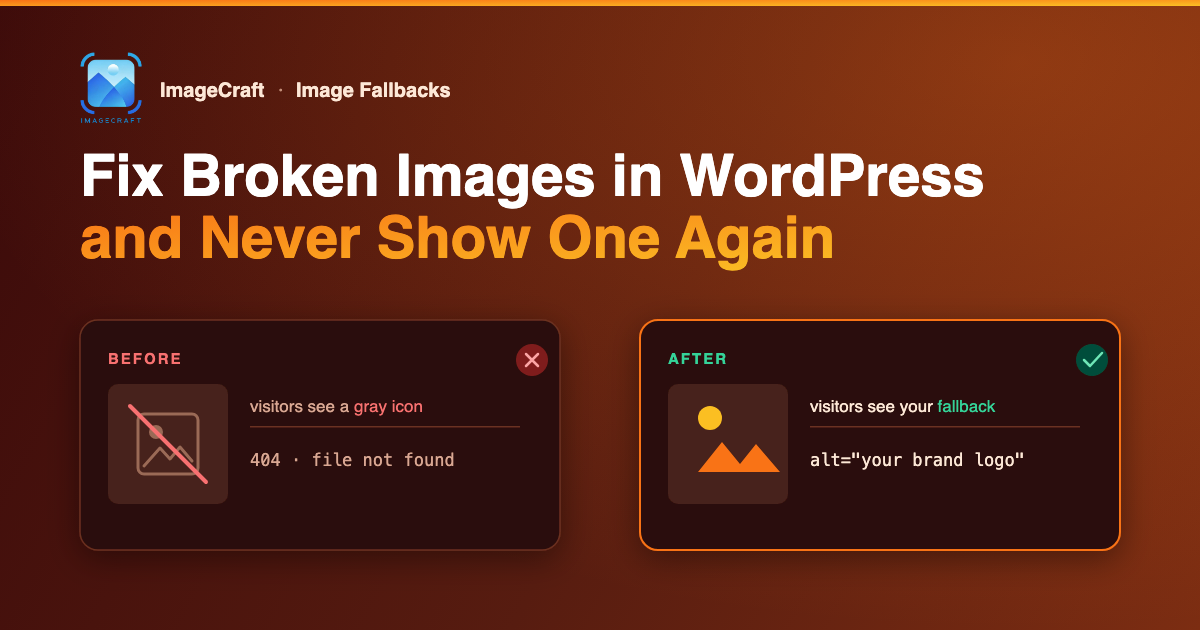
You know the icon. A small gray square with a torn photo inside it. It shows up on a page where an image used to be, and it tells every visitor the same thing: nobody is looking after this site.
Here is the uncomfortable part. Your visitors see broken images before you do. You look at your own site a few times a week, and mostly the same pages. Your visitors land everywhere — old posts, deep archive pages, product pages you haven’t opened in a year. If an image broke on one of those pages last month, it has been greeting people with that gray icon ever since.
And images break more often than you would think. You clean up your Media Library and delete a file that was still used somewhere. You migrate to a new host and a few files don’t make the trip. You hotlinked an image from another site years ago and that site is now gone. None of these feel like big mistakes at the time. Each one leaves a broken image behind.
There is a second, quieter version of the same problem: posts with no featured image at all. They don’t show a broken icon, but they show up as a blank card in your blog archive, an empty box in “related posts,” and a bare link when someone shares them on social media. One post with no thumbnail in a grid of posts with thumbnails looks exactly like what it is — the one nobody finished.
ImageCraft’s Image Fallbacks feature handles both. You pick one fallback image, turn the feature on, and from that moment no visitor ever sees a broken icon or an empty thumbnail on your site again. It also scans your Media Library and shows you which images are actually broken, so you can fix the real problem, not just cover it.
TL;DR
- Image Fallbacks does two things: it swaps broken images for a fallback image the moment they fail, and it gives posts without a featured image a default one.
- It is fully non-destructive. Nothing is written to your posts or your database. Turn it off and your site goes back to exactly how it was.
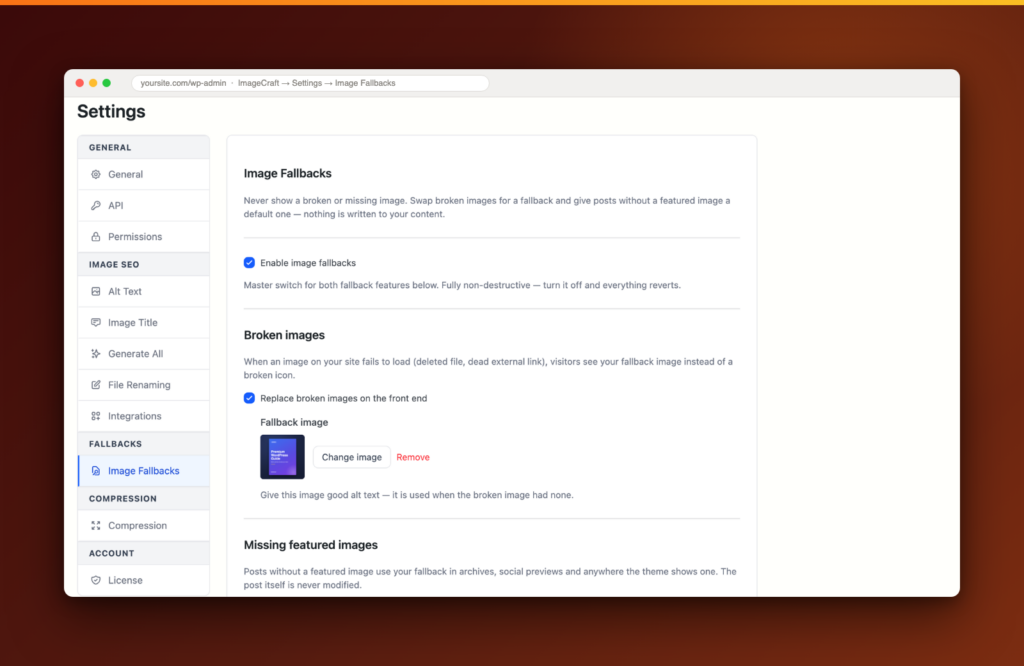
- Setup: go to ImageCraft → Settings → Image Fallbacks, turn on Enable image fallbacks, pick a fallback image, and turn on the parts you want.
- The Dashboard scans your Media Library for images whose files are missing and lists them under “Needs attention,” so you can repair the real problem too.
- The fallback carries proper alt text, so it stays friendly to screen readers and search engines.
- Free covers one global fallback image and the manual scan. Pro adds a different fallback per post type (say, a product placeholder for WooCommerce) and a scheduled scan that emails you when new broken images appear.
- It is off by default. If you updated the plugin and changed nothing, nothing changed.
Why images break in the first place
It helps to know what you are actually protecting against. Almost every broken image on a WordPress site comes from one of these:
You deleted the file. This is the big one. You open the Media Library, see an image, think “I don’t use this anymore,” and delete it. But WordPress does not warn you if that image is still sitting inside an old post. The post keeps the image URL, the file is gone, and the page now shows a broken icon.
You migrated or changed hosts. Moving a site is messy. Sometimes the database comes over cleanly but a chunk of the uploads folder does not. Everything looks fine on the pages you check, and the missing files hide in the pages you don’t.
You linked to an image on another site. Maybe years ago, maybe in a post you forgot about. That other site reorganized, or shut down, and now your page points at nothing. No cleanup on your side caused it, and no backup of yours can restore it.
You renamed a file. New file name, but one old post — or a widget, or a theme setting — still uses the old URL.
A CDN or optimization plugin hiccuped. Sometimes the file exists but a service in front of it fails for some visitors. These are the worst kind, because the image works when you look.
Notice something about that list: most of these are silent. Nothing emails you. No error log fills up. The page just quietly gets worse, and the only people who know are the visitors who see it.
What a fallback image is (and what it is not)
A fallback image is a stand-in. It is one image you choose — usually your logo on a soft background, or a simple branded placeholder — that appears wherever a real image should be but isn’t. It shows up in two situations: a broken image (an image tries to load and fails, and the visitor sees your fallback instead of the torn-photo icon) and a missing featured image (a post never got one, and it uses your fallback as its thumbnail instead of showing a blank card).
Here is what a fallback is not: it is not a repair. If a post points at a deleted file, that reference is still wrong; the fallback just covers for it so visitors don’t suffer while it’s wrong. That is why ImageCraft pairs the fallback with a scan that tells you which images are actually broken. The fallback protects your visitors today. The scan list is your to-do list for fixing things properly.
ImageCraft never touches your content. It does not edit your posts, and it does not save the fallback into your database. Everything happens at the moment the page is shown to a visitor. Turn the feature off and every page renders exactly as it did before — there is nothing to undo, because nothing was done to your data.
Setup: pick one image, flip one switch
You do this once.
- Install ImageCraft from the WordPress plugin directory and activate it, if you haven’t already.
- Go to ImageCraft → Settings → Image Fallbacks.
- Turn on Enable image fallbacks. This is the master switch for everything below it.
- Under Broken images, turn on Replace broken images on the front end and choose a Fallback image from your Media Library.
- Under Missing featured images, turn on Use a default featured image. You can pick a second image here, or just tick Use the same image as the broken-image fallback and reuse the first one.
- Click save.
That’s it. No code, no theme edits, and you don’t need an AI key for any of this — Image Fallbacks works even if you use ImageCraft only for this one job.
Tip: Before you pick your fallback image, give it good alt text in the Media Library. When ImageCraft swaps a broken image that had no alt text of its own, it uses the fallback’s alt text in its place. A blind visitor hears something useful instead of nothing.
Part 1: Replace broken images for visitors
Once this is on, ImageCraft adds one small script to your public pages. It watches every image on the page. The moment an image fails to load, the script swaps it for your fallback image. It also checks for images that had already failed before the script started, so nothing slips through on slow connections.
The visitor experience is simple: they never see the gray torn-photo icon. They see your fallback image, sitting cleanly where the broken image would have been. The page keeps its shape, the layout doesn’t jump, and the site looks cared for.
- It catches everything, including images you don’t control. Because the swap happens in the visitor’s browser, it works on hotlinked images from other sites, CDN failures, and files missing from your own server alike.
- It fills in alt text. If the broken image had alt text, it keeps it. If it had none, the fallback’s own alt text is used. Screen readers and search engines still get a real description.
- It can’t loop. Every swapped image is marked, so if your fallback image itself ever failed to load, the script stops rather than trying forever.
What it does not do: it does not change the page’s saved content. The post still contains the original image URL. If you fix the real image later, the real image simply loads again and the fallback steps aside. Nothing to clean up.
Part 2: Give every post a featured image
Featured images do more work than most people realize. Your theme uses them in the blog archive, in “related posts,” in sliders and grids. Social networks use them when someone shares your link — that preview card on Facebook or LinkedIn is your featured image. A post without one shows up as a gap in all of those places.
Turn on Use a default featured image, and any post without a featured image quietly uses your fallback instead. Everywhere. The archive card gets a thumbnail. The related-posts box fills in. The social share preview shows your image instead of a gray nothing.
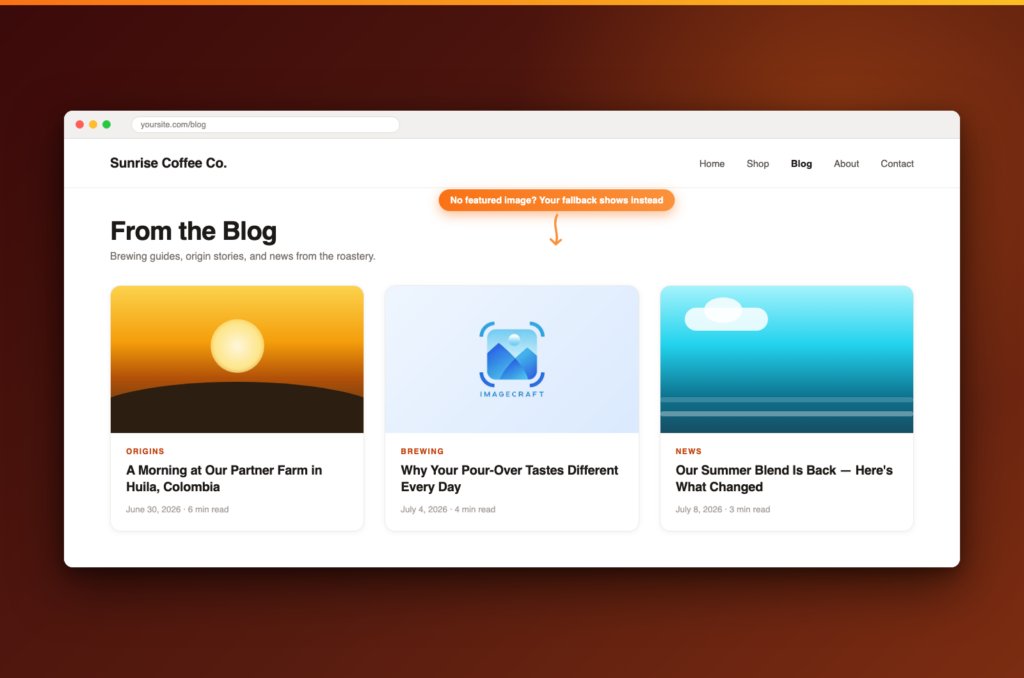
The important word is quietly:
- Your post is never modified. ImageCraft does not attach the image to the post or write anything to the database. Open the post in the editor and the featured-image box is still empty — which is honest, because it is.
- Real featured images always win. The fallback only appears when there is nothing else. Set a real featured image and that image is used, everywhere, immediately.
- wp-admin is untouched. Your post list and editor show the true state of things, so you can still see which posts genuinely lack a featured image. The fallback is for your visitors, not for you.
By default this applies to every public post type. If you want it narrower — say, posts but not pages — use the Apply to post types checkboxes on the same settings screen.
Note for stores and Pro users: with ImageCraft Pro you can set a different fallback per post type — for example, a product-shaped placeholder for WooCommerce products and your logo card for blog posts. The free version uses one global image everywhere, which covers most sites fine.
Part 3: Find your broken images and actually fix them
The two features above protect your visitors. This one is for you.
Open the ImageCraft Dashboard. It scans your Media Library in the background, checking every image against the files actually on your server. Any image whose file is missing shows up in the Needs attention area as a broken-images count, with a link to the fallback settings.
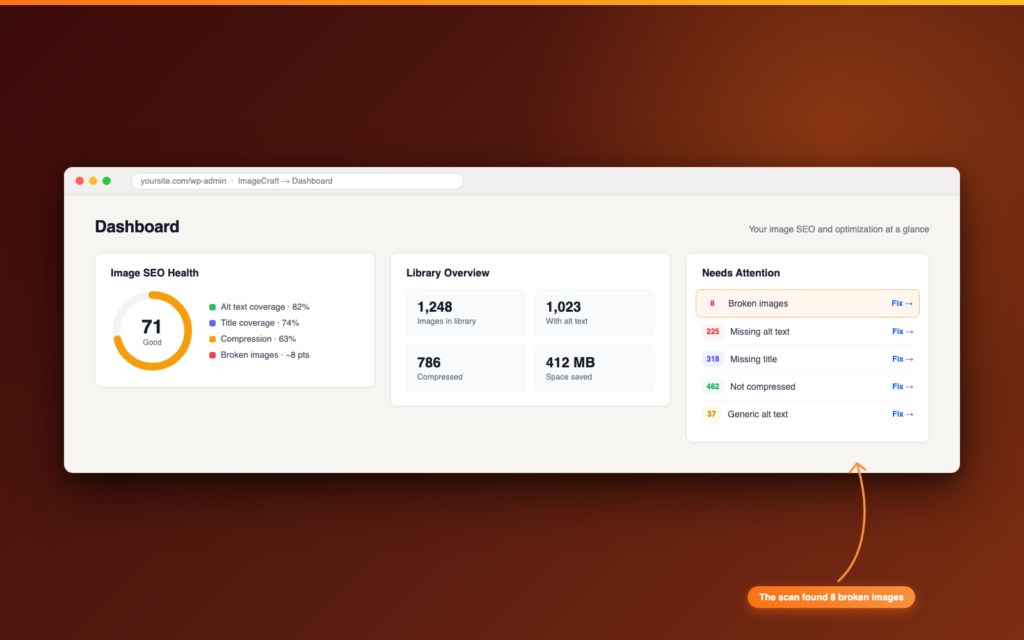
This matters because a fallback, on its own, has a downside: it hides the evidence. If broken images always look fine to visitors, they also always look fine to you, and you might never fix the underlying references. The scan closes that gap. You get the clean visitor experience and a plain list of what is really broken.
- It runs on your server, not in your browser. It checks whether each image’s file exists on disk. That catches deleted and lost files — the most common case. It can’t check images hosted on other people’s sites, but the front-end swap covers those for visitors anyway.
- It is patient with big libraries. On a site with tens of thousands of images, the scan works in chunks and picks up where it left off, so it finishes without straining your server.
- The scan runs even if fallbacks are off. You can use ImageCraft just to find broken images, without enabling any front-end behavior at all.
What do you do with the list? For each broken image, you have three honest options: restore the file from a backup, edit the post to use a different image, or remove the image from the post entirely. The fallback buys you time to do this calmly instead of in a panic.
Pro: ImageCraft Pro can run this scan on a schedule — daily or weekly — and email you only when new broken images appear. Break something on Tuesday, know about it Wednesday morning, instead of finding out from a visitor months later.
Will this slow down my site?
Short answer: no. The broken-image script is a tiny, dependency-free piece of JavaScript that loads after your page content. It does not delay anything the visitor sees, and it sits idle unless an image actually fails. The featured-image fallback is a lightweight check built to answer “nothing to do here” as fast as possible, which is what it says on every image that is fine.
And when the whole feature is switched off — which is the default — none of this loads at all.
Choosing a good fallback image
The fallback image will appear in places you can’t predict — a wide hero slot on one page, a small square thumbnail on another. A few guidelines make one image work everywhere:
- Keep it simple. Your logo centered on a soft, solid background is the classic for a reason. It looks intentional at any size.
- Avoid text beyond a word or two. Text becomes unreadable when the image is shown small, and awkward when it is cropped.
- Match your brand colors. The fallback will sit next to your real content. It should look like it belongs.
- Use a reasonably large source image. Something around 1200×630 works well — that is also the size social networks like for share previews.
- Give it alt text. The fallback’s alt text is what screen readers hear when a broken image had none. Something plain like “Sunrise Coffee Co. logo” is perfect.
Don’t overthink it. The fallback’s whole job is to be quietly acceptable. If a visitor doesn’t consciously notice it, it is working.
Frequently asked questions
Does this change my posts or my database?
No. This is the feature’s core promise. Nothing is written to your content. The broken-image swap happens in the visitor’s browser, and the featured fallback is applied at display time. Turn the feature off and your site is back to exactly how it was.
Will the fallback show up in my wp-admin?
No. The editor, the post list, and the media modal all show the true state of your content. A post without a featured image still looks empty in admin, so you always know what’s real.
What happens when I fix the real image?
The fallback steps aside on its own. It only ever appears when the real image is broken or missing. Restore the file, or set a real featured image, and the real one shows immediately. Nothing to undo.
Does it work with my theme? Block themes too?
Yes. The featured fallback answers the same question every theme asks — “does this post have a thumbnail?” — so classic themes, block themes, and page builders all pick it up naturally. It reaches social share previews the same way.
Does it catch images hosted on other sites?
The front-end swap does, yes — it covers anything that fails to load in the browser, wherever it lives. The Dashboard scan only checks files on your own server, since it can’t inspect other people’s sites.
Do I need an AI key for this feature?
No. Image Fallbacks is completely independent of the AI features. You can use ImageCraft only for fallbacks, or only for compression, without ever adding a key.
Is this in the free version?
Yes — the master toggle, the broken-image swap, the default featured image, the post-type list, and the manual Dashboard scan are all free, with no daily limits. Pro adds two things: a different fallback image per post type, and a scheduled scan (daily or weekly) that emails you when new broken images appear.
I updated the plugin — did anything change on my site?
No. Image Fallbacks is off by default. Existing sites behave exactly as before until you turn it on yourself.
Get started
Broken images are a small problem with an outsized cost. Each one is silent — no alert, no error, just a gray icon quietly telling your visitors that no one is minding the site. Image Fallbacks fixes the visitor’s experience immediately: pick one image, flip the switch, and no one ever sees a broken icon or a blank thumbnail on your site again. The Dashboard scan then hands you the real repair list, so covering the problem never turns into ignoring it. And because nothing is ever written to your content, you risk exactly nothing by turning it on.
Open ImageCraft → Settings → Image Fallbacks, turn on Enable image fallbacks, choose a fallback image, enable both features, and save. Five minutes, once — and one whole category of embarrassment is gone for good.
Ready to never show a broken image again? Get ImageCraft →

Comments
Leave a comment
Loading comments…