



Most WooCommerce stores have hundreds of product photos with no alt text. That hurts you twice. Shoppers who use a screen reader can’t tell what each photo shows, and Google can’t read the image either, so you miss free traffic from image search. ImageCraft fixes both, in bulk, straight from your dashboard.
Why product alt text beats plain AI alt text
Most AI tools only look at the image. They describe a hoodie photo as “a black hoodie on a white background.” That is correct, but it does not help you sell. It has no product name and none of the words a buyer would search. ImageCraft is different. Before it writes anything, it reads the product in WooCommerce and passes the details to the AI.
ImageCraft sends the product name, SKU, categories, and price to the AI, and tells it to include the product name. So “a black hoodie on a white background” becomes “Teton black cotton pullover hoodie, Men’s Hoodies & Sweatshirts.”
ImageCraft saves the alt text to the Media Library, on the image itself. So it shows up everywhere the image is used: the shop page, the product page, related products, and any block or theme that reads the image. You do the work once, and every spot that uses the image gets the benefit.
Setup: two minutes
📷 [SCREENSHOT: ImageCraft Settings → Integrations → WooCommerce, with “Include product information” checked and “Default Tone for Products” set to Product SEO]
- Install ImageCraft from the WordPress plugin directory and activate it. It detects WooCommerce on its own.
- Add your AI key. In ImageCraft → Settings → API, pick a provider (Anthropic Claude, OpenAI, or Google Gemini) and paste your key. On WordPress 7.0 and up you can use the built-in AI instead.
- Turn on product context. In ImageCraft → Settings → Integrations → WooCommerce, check Include product information. This is what makes the alt text product-specific, so don’t skip it.
- Pick a default tone on the same screen. Start with Product SEO (Recommended).
Method 1: Do the whole catalog at once (recommended)
This is the fastest way to fix a whole store. If you only try one thing, try this.
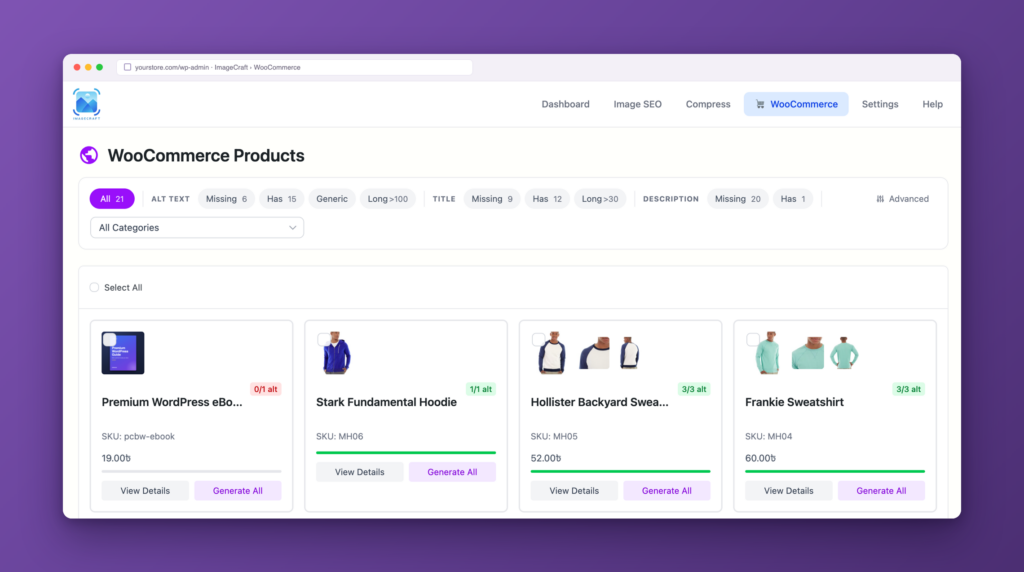
- Go to ImageCraft → WooCommerce. Your products show up as cards with a filter bar on top. Each card has an alt-text coverage badge, like 0/1 alt or 3/3 alt, so you can see at a glance which products still need work.
- Under Alt Text, click Missing to show only products with no alt text. You can also filter by Generic or Long >100, and do the same for Title and Description.
- Optional: narrow by category, or open Advanced to filter by date or price.
- Click Select All. If your filter spans more than one page, ImageCraft offers to select all of them, not just the ones you can see.
- Tick Alt text, Title, and Description in any mix. One AI call per image fills in whatever you ticked.
- Click Generate. ImageCraft gathers every image, featured and gallery, removes duplicates, and runs a background job. Close the tab if you like; it keeps running and resumes if interrupted.
One job handles up to 500 images. For a big catalog, filter by category or price and run a few jobs in a row. Each new job starts where the last one ended.
Method 2: One product at a time
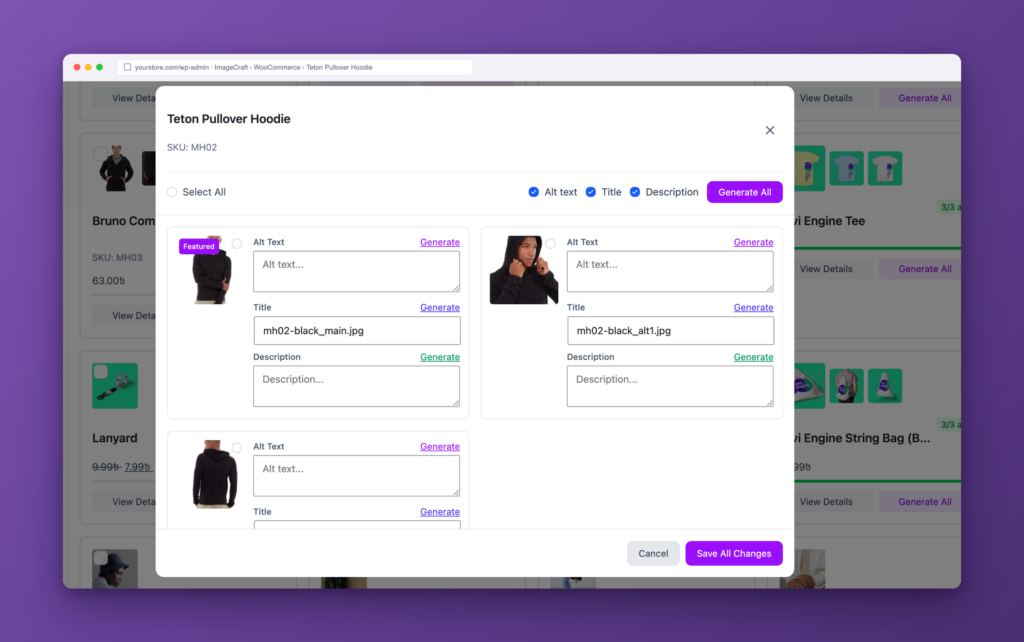
Method 1 is great for volume. Sometimes you want a closer look. On any product card, click Generate All to write alt text for the featured image and every gallery image in one click. Or click View Details to open the product window. There you see the featured image (marked with a Featured badge) and every gallery image side by side, each with its own alt text, title, and description fields. Use the Generate link on any field to fill just that one, edit anything by hand, then click Save All Changes.
Gallery images are the ones most often left blank. The featured image sometimes gets attention; the other gallery shots almost never do. Generate All covers the whole set at once.
Method 3: Turn on auto-generate
The two methods above clean up what you already have. This one keeps you clean going forward. Turn on auto-generate on upload in the settings, and every image you add to a product gets alt text as it uploads. New products go live ready for search, and you never build a backlog again. You can skip certain post types and skip images that already have alt text, so ImageCraft only fills the gaps.
Pick the right product tone
- Product SEO (recommended) — keyword-rich text for Google Images. Example: Teton black cotton pullover hoodie, Men’s Hoodies & Sweatshirts.
- Product Descriptive — clear, plain text for screen readers. Example: Black pullover hoodie with a drawstring hood and front kangaroo pocket.
- Product Lifestyle — for in-use or on-model photos. Example: Person wearing the black Teton pullover hoodie with the hood up.
Not sure? Start with Product SEO. Set your default under Settings → Integrations → WooCommerce → Default Tone for Products. Want your own wording? Choose Custom Prompt. Even then, the product name, category, and SKU are still added as context, and your max-length limit still applies.
Frequently asked questions
Does it cover gallery images, or just the featured image?
Both. Bulk Generate and per-card Generate All collect the featured image and every gallery image, with duplicates removed. Nothing gets missed.
Will it overwrite alt text I wrote myself?
Only if you want it to. Filter to Missing to touch empty images only, and turn on “skip images with existing alt text” to fill gaps without changing your work.
Can it write titles and descriptions too?
Yes. When you bulk-generate, tick Alt text, Title, and Description. One AI call per image handles the fields you pick, so there is no extra cost to adding them.
Do I need ImageCraft Pro for this?
No. The WooCommerce screen, product alt text, gallery generation, and the three tones are all in the free plugin. The free plan gives you 50 actions per day. Pro removes the daily limit and adds features like auto-compress on upload.
Which AI provider should I use?
Use your own key from Anthropic Claude, OpenAI, or Google Gemini. Any of them works well. You pay the provider directly, with no markup. If you are not sure, pick the one you already have an account with.
Get started
Install ImageCraft, add your AI key in Settings → API, turn on Include product information under Settings → Integrations → WooCommerce, then open the WooCommerce screen, filter to Missing, and click Generate. Your product images will be ready for search before your next coffee.
Ready to make every product image count? Get ImageCraft →

Comments
Leave a comment
Loading comments…